Create and manage API keys
Create an organization API key in GraphxServer.io settings, store the secret, and rotate or retire it later.
An API key lets a script, backend job, or partner integration act for your organization without anyone signing in. You create it once in GraphxServer.io, store the secret somewhere safe, and the integration presents it every time it needs access.
This page covers the part you do in the browser. Sending the key to an API is a separate step, covered in Use an API key.
Two facts shape everything below.
- You see the secret once. GraphxServer.io stores only a hash. If you close the dialog without copying it, nobody can recover it, and you'll have to generate a new one.
- Keys belong to an organization, not to you. A key keeps working if you leave the team. That's why it lives under organization settings, and why each one needs a name that tells the next person what it's for.
Before you start
You need a GraphxServer.io account that belongs to the organization the key is for. The examples on this page use the dev environment at dev.beta.graphxserver.io. Each environment signs keys with its own identity server, so a dev key doesn't work against production. Create the key in the environment the integration will call.
Have two things decided before you click New key.
- A name. It has to be between 4 and 128 characters. Pick something a teammate can read in six months and know what breaks if they revoke it. We use
<system> - <environment>, for exampleOrders sync - staging. - Where the secret will live. A password manager or your team's secret store. Have it open in another tab, because the secret appears in a dialog you can't reopen.
Create a key
Sign in
Open dev.beta.graphxserver.io and click Get Started. The app sends you to the identity server at dev.auth.graphxserver.io. Sign in with your email and password, or with Google.
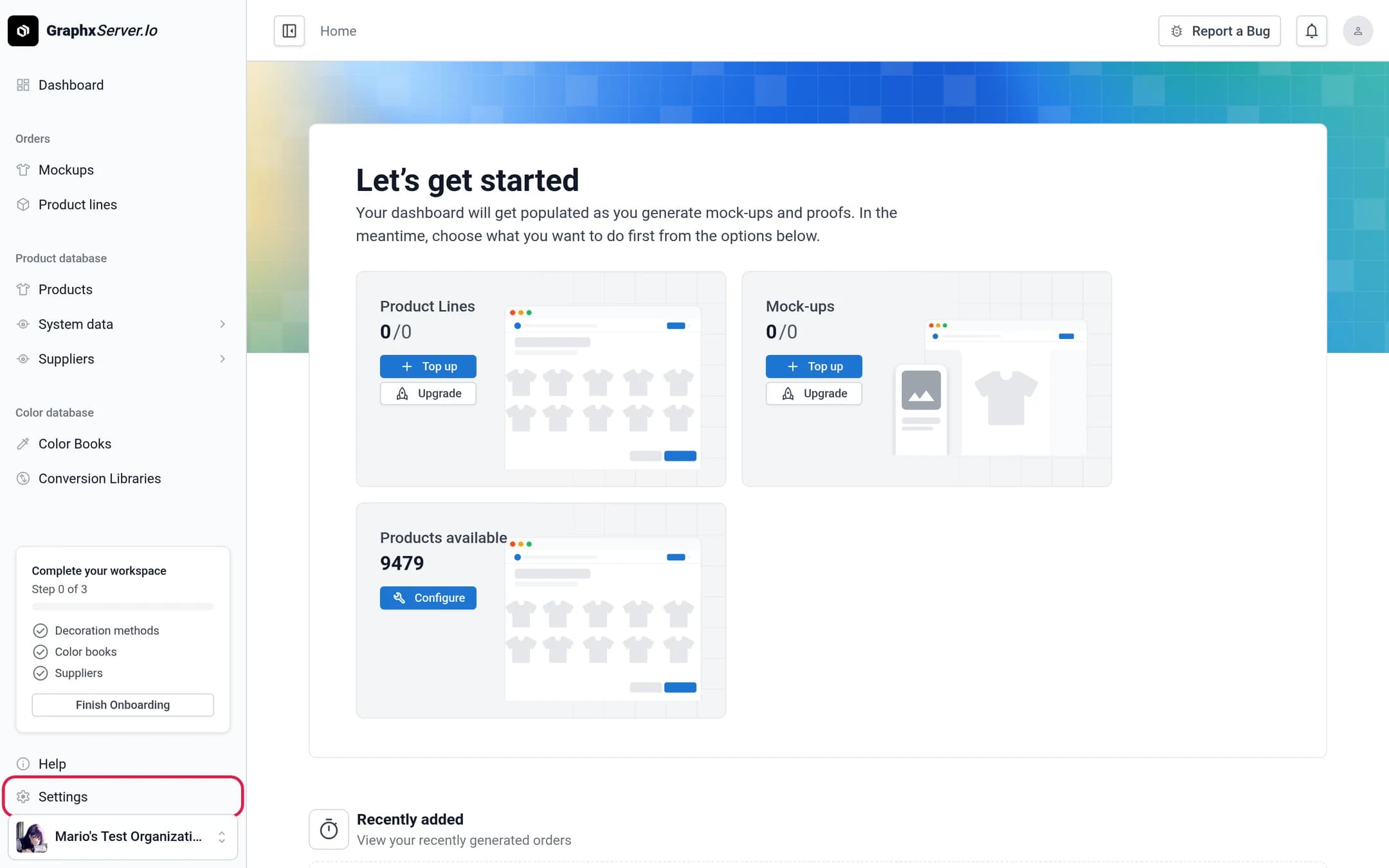
Check the active organization, then open Settings
Look at the bottom of the left sidebar. The card there shows your active organization, which is the one the new key will belong to. If you're in more than one organization, click the card and switch before going further. A key created in the wrong organization can't be moved.
Click Settings, just above the organization card.
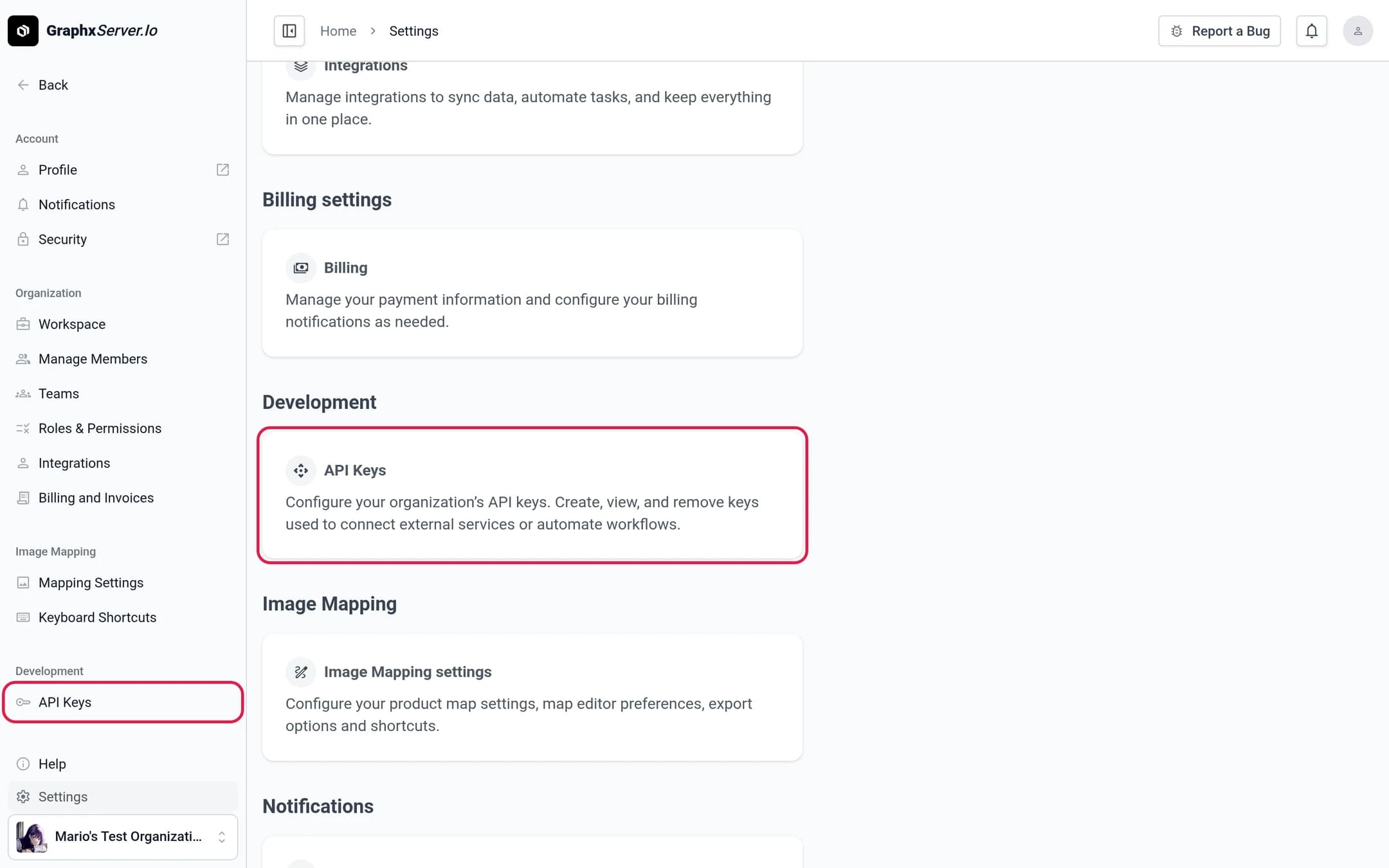
Open API Keys
Scroll to the Development section and click the API Keys card. The same page is in the settings sidebar under Development, and you can go straight to it at /settings/api-keys.
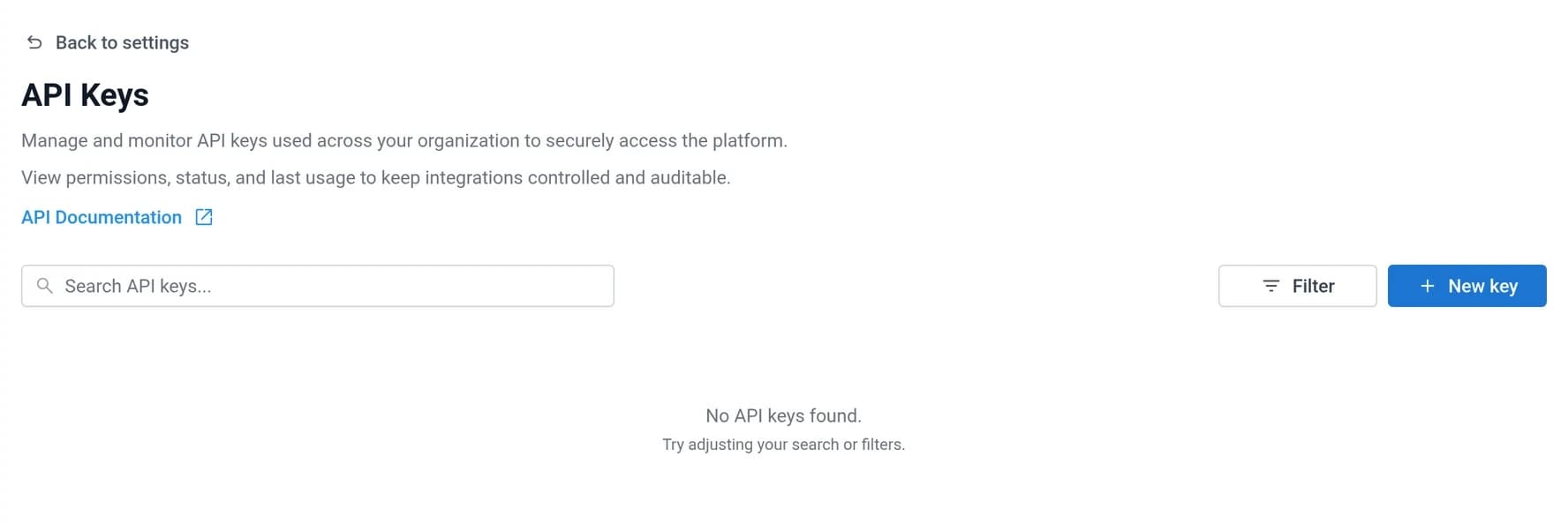
The page lists every key in the active organization. In a new organization the list is empty.
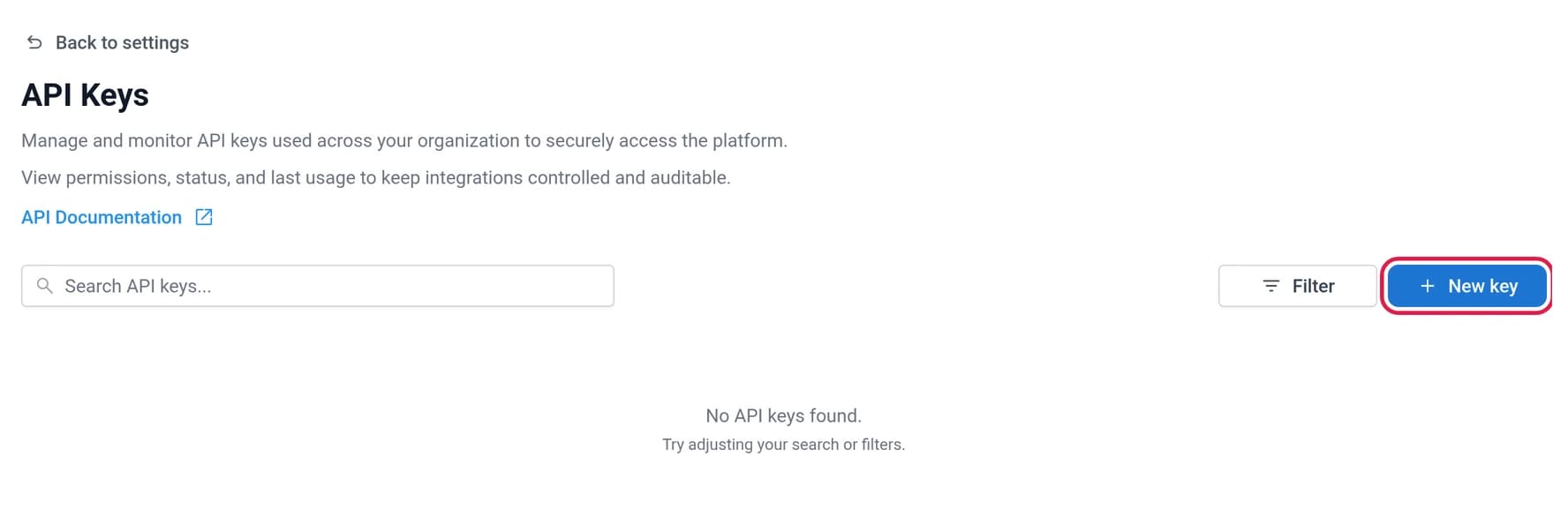
Name the key and pick a permission level
Type the name in Key name. Then open Permissions level and choose one of the three options.
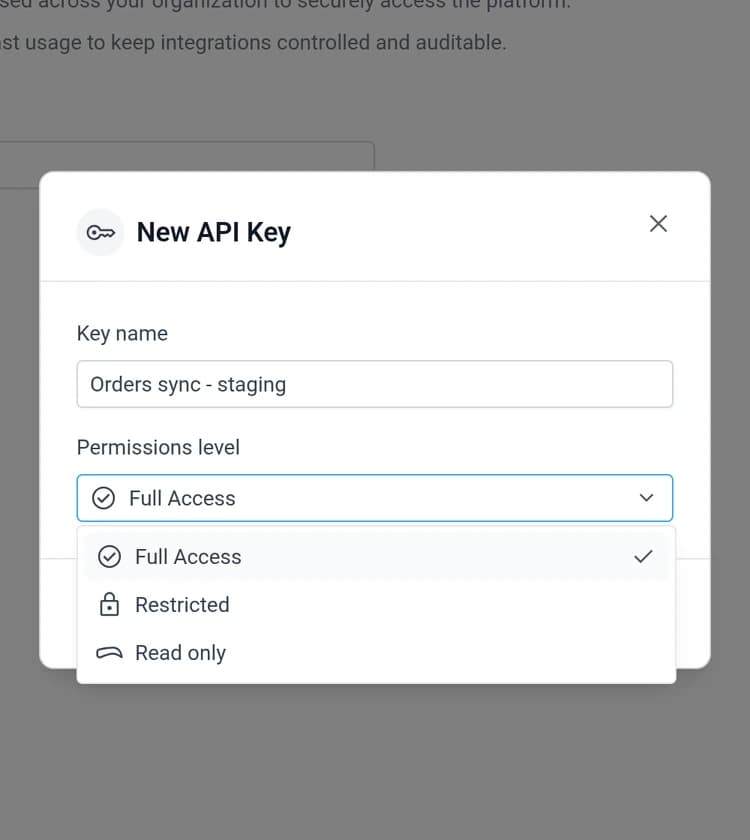
| Level | Pick it when |
|---|---|
| Full Access | The integration creates or changes data. This is the default. |
| Restricted | The integration needs some write access but not all of it. |
| Read only | The integration only reads, such as a report or a sync into another system. |
The permission level is a label for now
GraphxServer.io saves the level on the key and shows it in the list, but nothing checks it on API requests yet. Pick the level that matches what the integration should be allowed to do anyway. When enforcement arrives, your keys will already be correct, and until then the label tells reviewers what the key was meant for. What a key can actually reach today depends on the token exchange covered in Use an API key.
Generate the secret
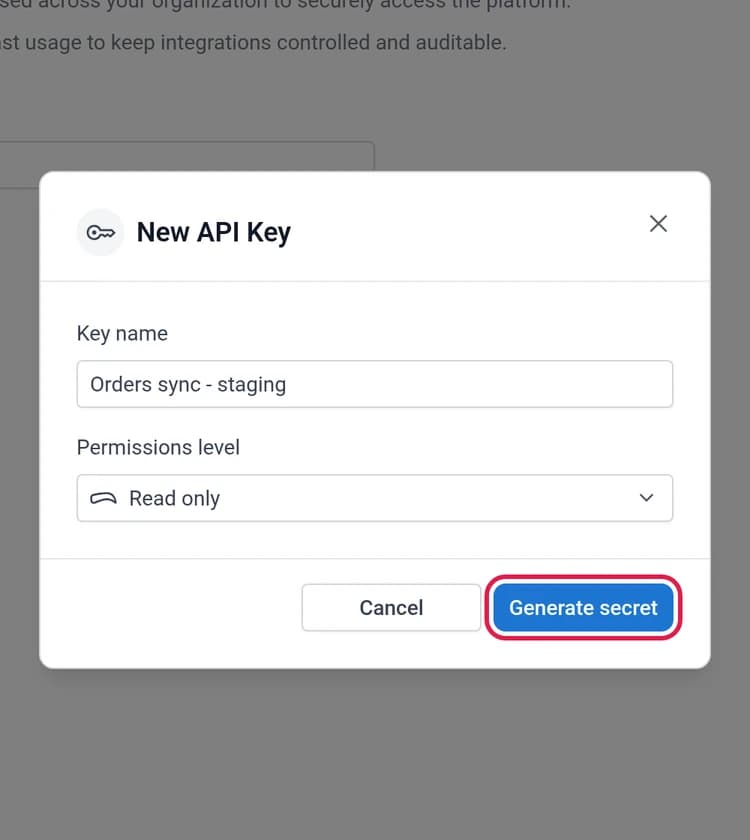
Click Generate secret. The button stays grey until the name has at least one character.
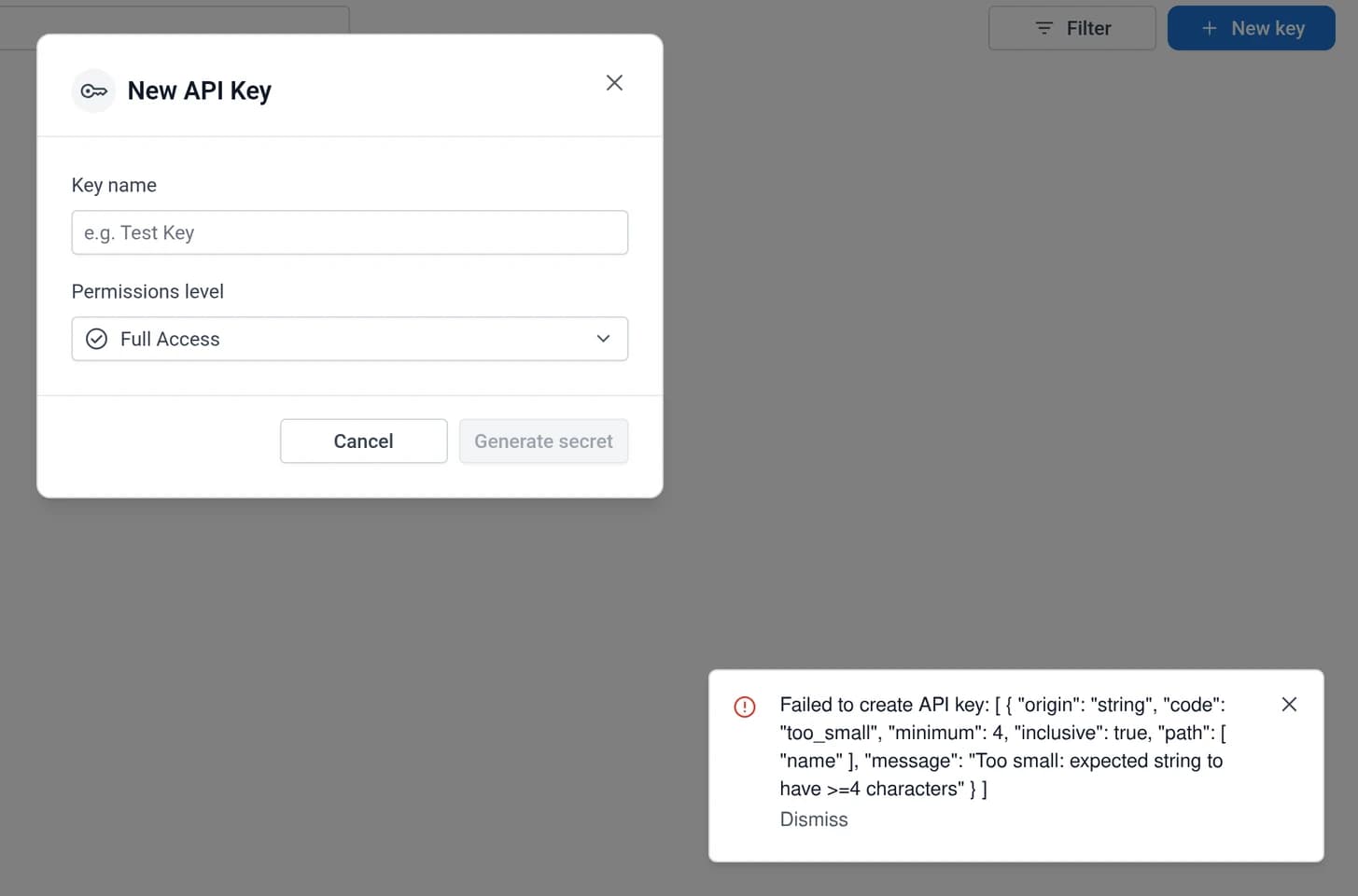
If the name is shorter than 4 characters, the button still works, but the server rejects the request and shows a raw validation error in the bottom-right corner. The dialog also clears the name field, so retype it with at least 4 characters and try again.
Copy the secret and store it
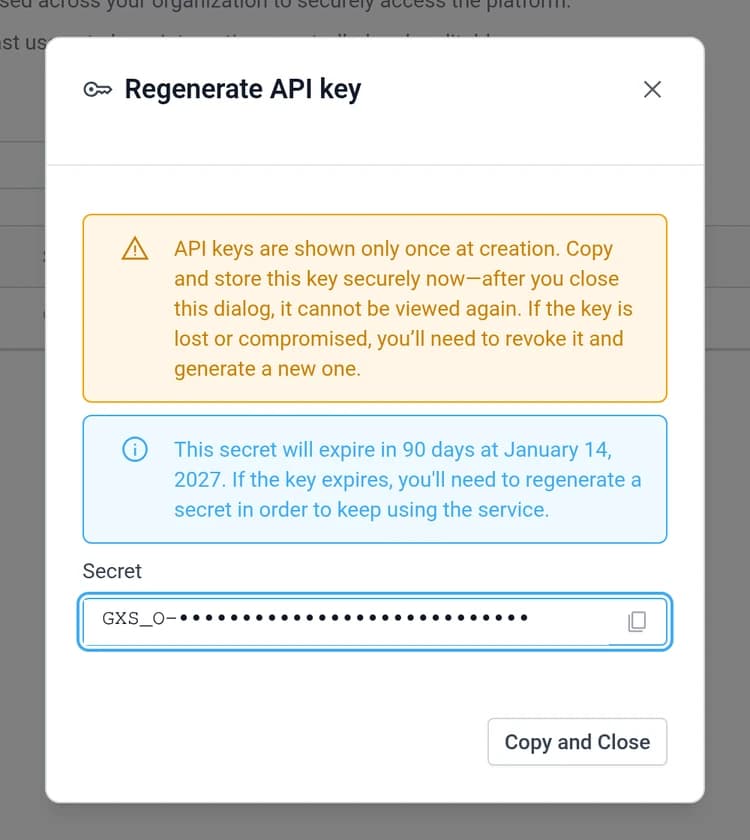
The next dialog shows the secret. It starts with GXS_O- and is 70 characters long. Copy it with the icon at the right end of the Secret field, or click Copy and Close, which copies it and closes the dialog in one step.
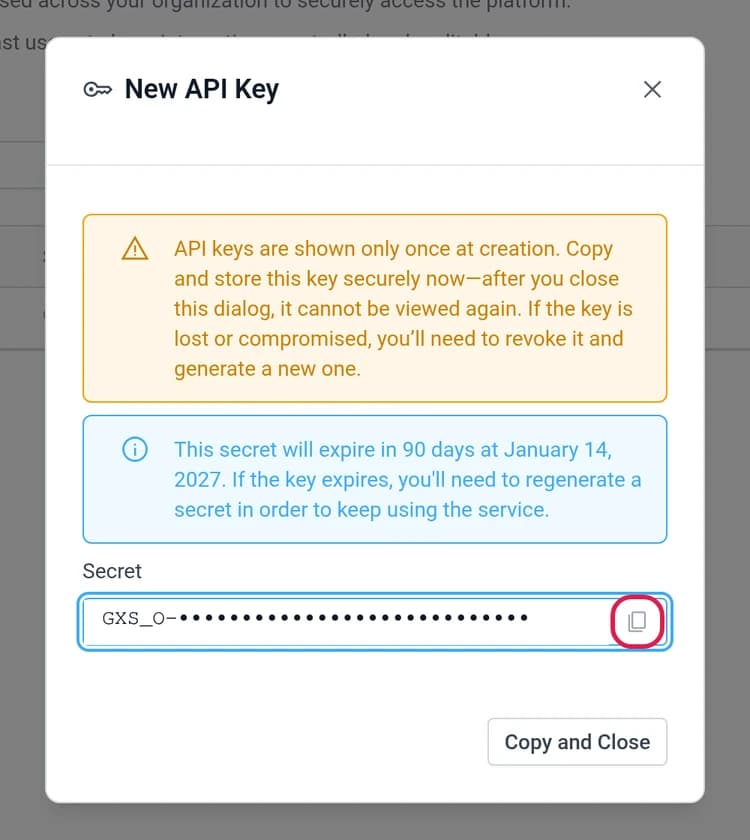
Paste it into your secret store right away, before doing anything else. A green "Secret copied to clipboard!" message confirms the copy worked. If you see "Failed to copy secret" instead, select the text in the field and copy it by hand before closing.
Closing this dialog is final
The X, the Escape key, and clicking outside the dialog all close it without copying. Once it's closed, the full secret is gone. The list only ever shows the first 8 characters. If that happens, regenerate the key and start this step again.
The blue box tells you when the key expires. Every key made here lasts 90 days, and you can't pick a different length. Put a reminder in your calendar a week or two before that date.
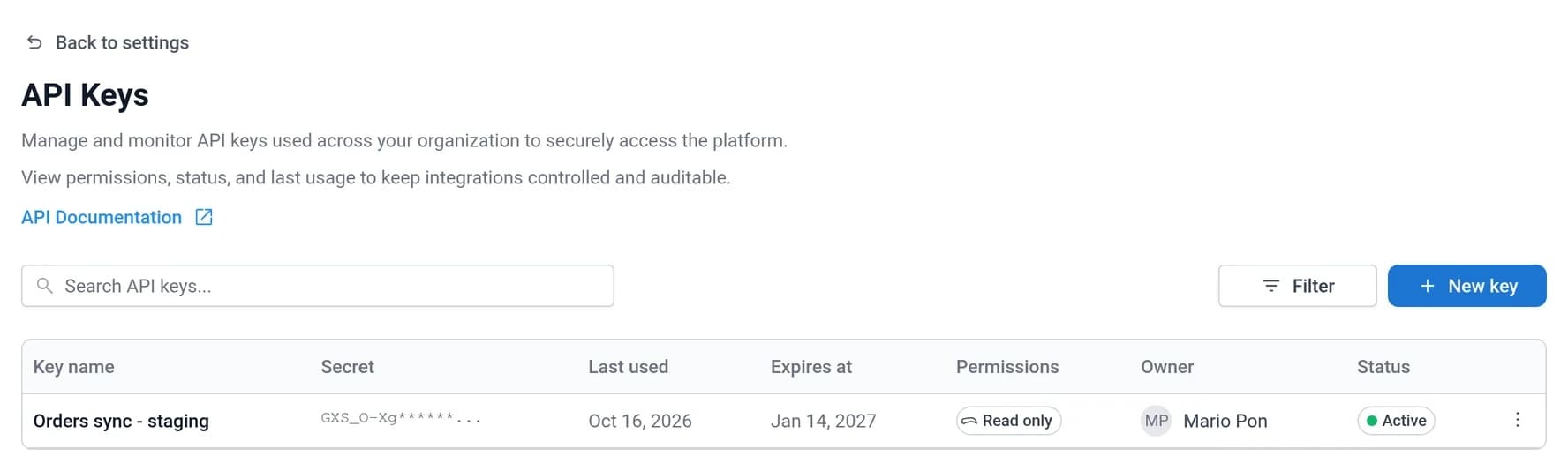
Read the key list
| Column | What it shows |
|---|---|
| Key name | The name you gave the key. |
| Secret | The first 8 characters, so you can match a key to the secret in your store. The rest is hidden for good. |
| Last used | Despite the name, this is when the key was last created or changed. It doesn't update when an integration uses the key, so don't use it to find unused keys. |
| Expires at | 90 days after the key or its latest secret was created. |
| Permissions | The level chosen at creation or in the last edit. |
| Owner | Only organization admins and owners see this column. It currently shows the name of whoever is looking at the page, not the person who created the key. |
| Status | Active, Expired (past its expiry date) or Revoked (switched off by someone). |
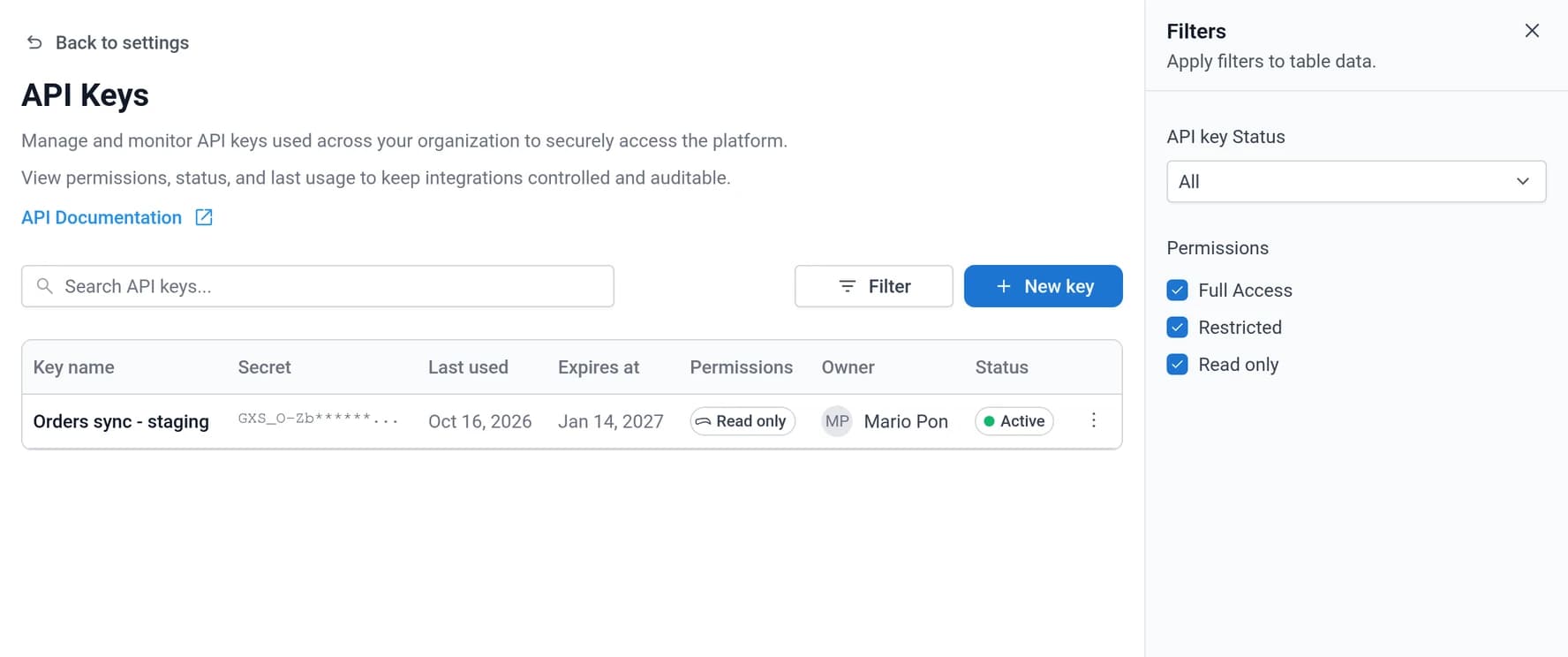
Use the search box to find a key by name. Filter opens a panel where you can narrow the list by status and permission level.
Change, rotate, or retire a key
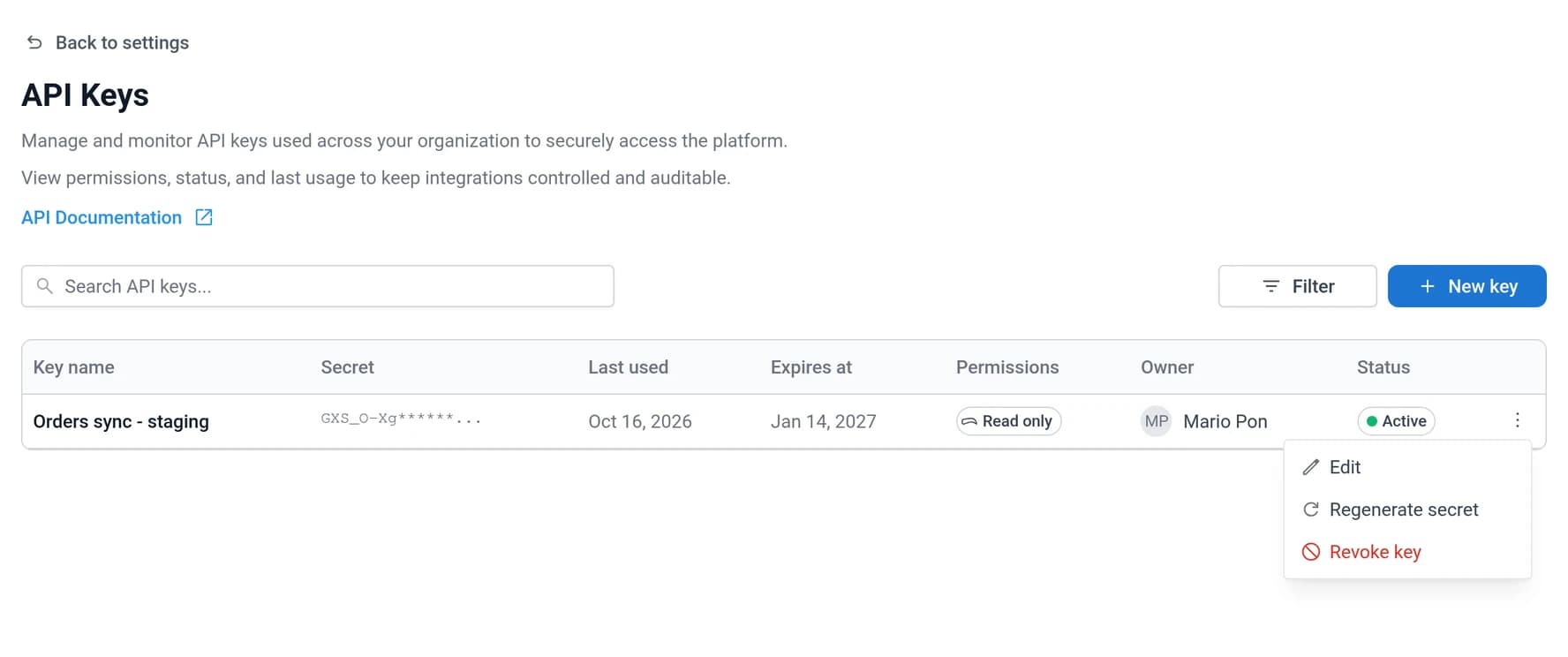
Every action lives in the ⋮ menu at the end of the key's row.
Rename or relabel it
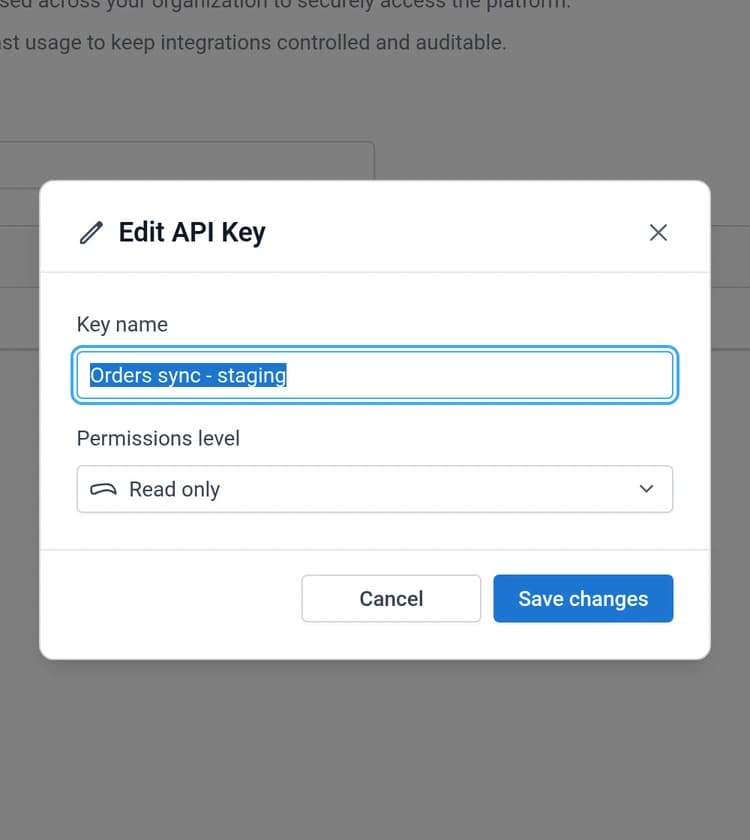
Edit changes the name and permission level. The secret stays the same, so nothing that uses the key needs updating.
Regenerate the secret
Use Regenerate secret when a key is about to expire, when you think the secret leaked, or when someone with access to it leaves.
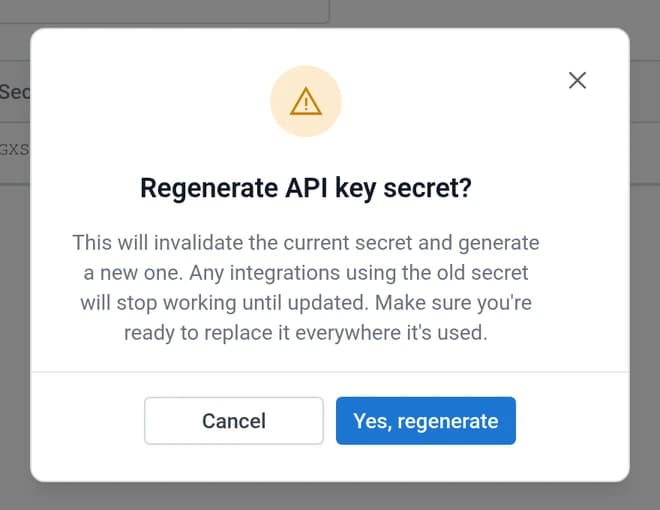
After you confirm, GraphxServer.io deletes the old key and creates a new one with the same name and permission level. You get a new secret, shown once just like at creation, and a fresh 90-day expiry. The old secret stops working within about 5 minutes. See Revoke it for why it isn't instant.
Rotating without downtime
Once the old secret stops working, about 5 minutes after you confirm, anything still using it fails until you deploy the new one. For an integration that can't go down, do it in this order instead.
- Create a second key with a name like
Orders sync - staging (2026-10). - Deploy the new secret to the integration and confirm requests succeed.
- Revoke the old key, then delete it.
Revoke it
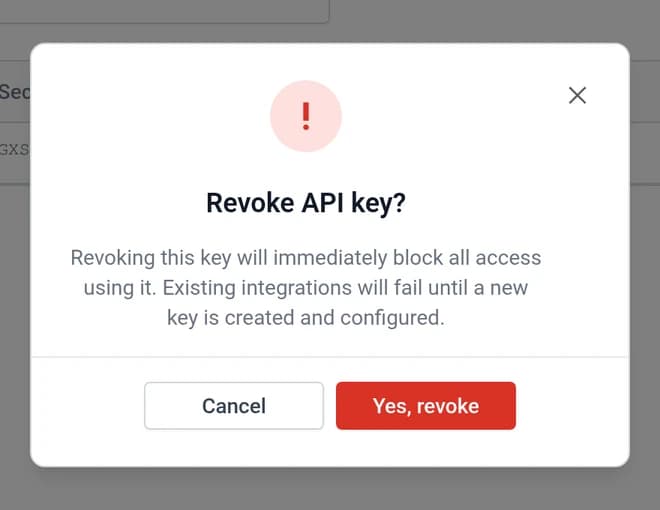
Revoke key switches the key off. Use it when an integration is retired or when a secret has leaked and you want access stopped now. Requests with that secret start failing with 401 about 5 minutes after you confirm.
Revoking takes about 5 minutes
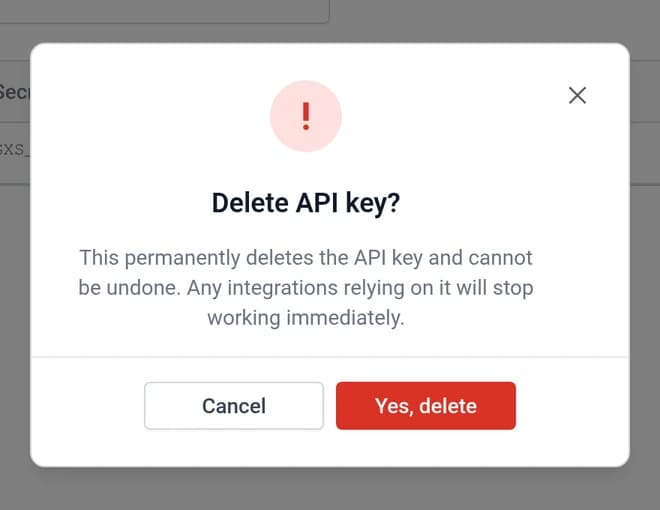
The GXSIO API doesn't stop accepting a key the moment you revoke it. In a test on October 16, 2026, a revoked key kept returning data for 5 minutes, and the first 401 came just after the 5-minute mark. Deleting the key doesn't speed this up. The confirmation dialog says access stops immediately, but that isn't what happened in the test.
If a secret leaked, revoke it right away anyway, and assume whoever has it can keep using it for those 5 minutes.
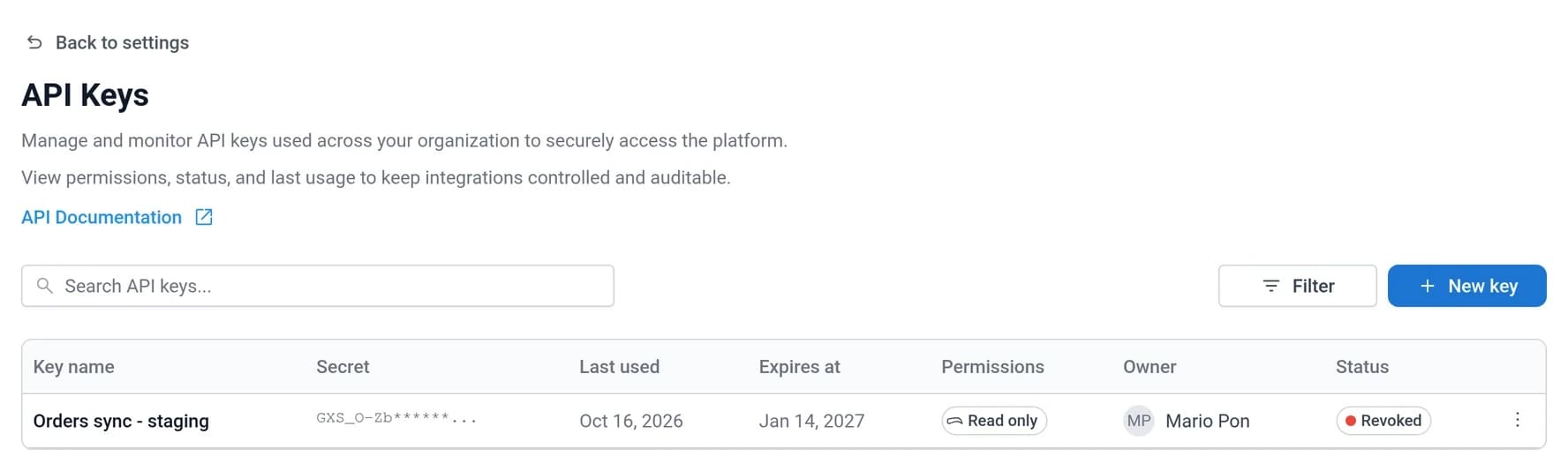
A revoked key stays in the list with a red Revoked status, so there's a record that it existed. You can't switch it back on. If you need access again, create a new key.
Delete it
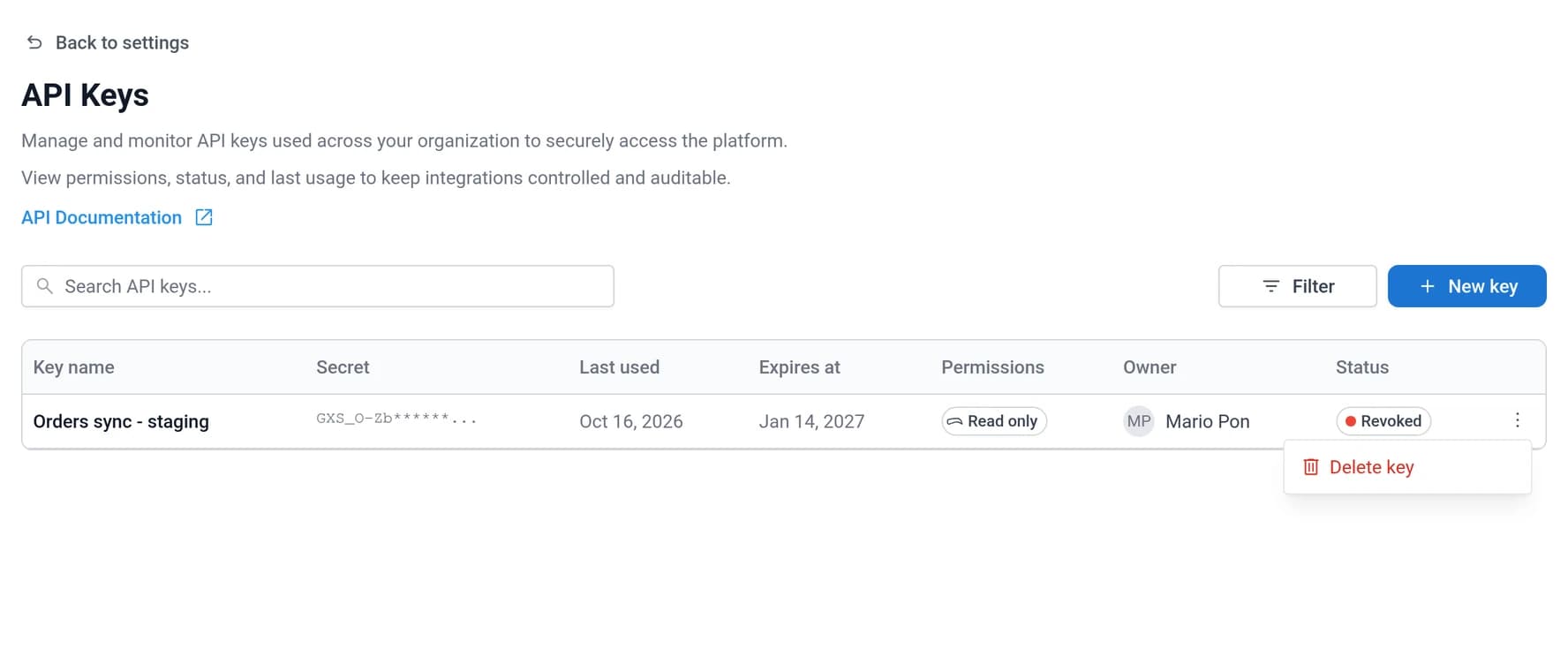
You can delete a key only after you revoke it. Once a key is revoked, its menu has a single option, Delete key. Deleting removes the row for good.
Keep keys safe
- Make one key per integration per environment. If the billing export and the orders sync share a key, revoking one breaks the other.
- Keep secrets in a secret manager or CI secret variables. Don't put them in source code,
.envfiles that get committed, tickets, or chat. - Never put a key in browser or mobile app code. Anyone can read it there. Keys are for servers and scripts.
- If a secret shows up somewhere it shouldn't, revoke the key first and work out what happened afterwards.
- Revoke and delete keys you no longer need. An unused key that still works is one more secret that can leak.
Troubleshooting
| What you see | What to do |
|---|---|
| "Too small: expected string to have >=4 characters" | Use a name with at least 4 characters. The dialog cleared the field, so type it again. |
| "An active organization is required to create an API key" | Your session has no organization selected. Pick one from the card at the bottom of the sidebar and try again. |
| A key you expected isn't in the list | Check the organization card. The list only shows keys for the active organization. Then open Filter and make sure status is All and every permission box is ticked. |
| You closed the secret dialog before copying | The secret can't be recovered. Use Regenerate secret, or create a new key and revoke the old one. |
| An integration stopped working after a rotation | It's still sending the old secret. Deploy the new one. |
If something here doesn't match what you see on screen, use Report a Bug at the top right of GraphxServer.io and mention this page.